Accessing the API
Introduction
To get started with building plugins, you must be set up on the development environment. This page will walk you through getting set up and situated.
Production Plugins
Plugins are unable to be used on live servers until they go through moderation, though this page will walk you through how to set up your devvelopment environment.
Set Up Environment
Setting yourself up to start building plugins is a straight forward process with a couple of different options for doing so. Below they are outlined.
If you use the Jagex Launcher, click here.
The above link will load the Jagex Launcher with the beta world pre-configured and automatically sign you in.
If you are not using the Jagex Launcher and connect to RuneScape through the client directly, click here and login as normal.
Account Setup
When you first login, you should click the "import save" button in the lobby to bring your live character data to the beta world. You can re-import your character once per hour.
How do I leave?
To leave the beta and go back to live servers, simply close your client and relaunch the game as you would normally.
Plugin Files
Once you have loaded into the beta for the first time, there will be a folder in your file system that contains the beta client and its data. This is where you need to place plugin files for the beta to be able to see and activate them. By default this is located at C:\ProgramData\Jagex\RuneScape-BETA, however it is possible that it will be located somewhere else on your system. While the game client is loading, you can click on the cog icon on the window to show the options, which includes where the cache folder is. You will know that you have found the correct folder if it contains a number of *.jcache files.
C:\ProgramData\Jagex\RuneScape-BETA/Users/user/Jagex/RuneScape-BETA/home/USER/.local/share/bolt-launcher/jagex/RuneScape-BETA/home/USER/.var/app/com.jagex.Launcher/data/wine/drive_c/users/USER/AppData/Local/Jagex/RuneScape-BETAOther Locations
For other installations, you may find useful information on the wiki.
This is the root folder that will contain everything related to plugins. If you have installed any plugins there will already be a plugins\ folder present that contains the downloaded files. However to develop plugins you will need to create a new folder within this root called dev_plugins\.
Creating a Plugin
A plugin only requires 3 things for the game to be able to see it and activate it:
The folder
Each plugin needs its own folder within the dev_plugins\ folder. The name of this folder will be the name that the plugin uses during development, so it is advised to name it something self-explanatory, and without any spaces. All files related to a plugin will be within this folder.
C:\ProgramData\Jagex\RuneScape-BETA\dev_plugins\my-awesome-plugin/Users/user/Jagex/RuneScape-BETA/dev_plugins/my-awesome-plugin/home/USER/.local/share/bolt-launcher/jagex/RuneScape-BETA/dev_plugins/my-awesome-plugin/home/USER/.var/app/com.jagex.Launcher/data/wine/drive_c/users/USER/AppData/Local/Jagex/RuneScape-BETA/dev_plugins/my-awesome-pluginThe Manifest
The manifest is a file that is written in JavaScript Object Notation (JSON) format. It is a list of information about the plugin itself, such as the full name of the plugin and what version it is on. The manifest is not required for testing your plugin, but is a requirement for submitting your plugin for moderation.
Create a plugin.json file by opening notepad and using the "save as" function to save the file into the my-awesome-plugin folder with the name plugin.json. Your system will then automatically detect it as a JSON file. Copy the following into the file, and save it again:
{
    "name": "My Awesome plugin",
    "version": "0.0.1",
    "contactEmailAddress": "example.email@jagex.com"
}
This is the minimum information that is required for the manifest, including a contact email address. It is recommended that the contact email is not the same as you use to log in to Mod.io. The manifest can have more information than just the above, see the links at the end of this page to see the full documentation for the manifest.
The Script
The main script is the file that actually contains the contents of the plugin; the code that will be run when the plugin is enabled. Plugins are written in Lua, a lightweight scripting language that is commonly used to embed code into another program. In this case, the plugins are being embedded in the RuneScape client.
Create a main.lua file by opening notepad and using the "save as" function to save the file into the my-awesome-plugin folder with the name main.lua. Your system will then automatically detect it as a LUA file. Double check that it has not asved as main.lua.txt, if it has done that then close the file, change the name, and then re-open it. Once the file is named properly, copy the following into the file and save it again:
print("Hello world!")Now that you have created the folder, the manifest, and the script, then your plugin is ready to be tested.
Client Console
Now that the plugin is ready to be tested, it's time to introduce the RuneScape client console, which is used to activate plugins during development. This is separate from the plugin browser that is used to download and activate plugins that have already been moderated. While logged into the beta world, pressing ALT + ` (the key beneath esc) will bring up the console. If you are using a non-UK keyboard then the key press is still ALT+ the key beneath esc. If that still fails, you can always enable the UK keyboard in your computer's language options.
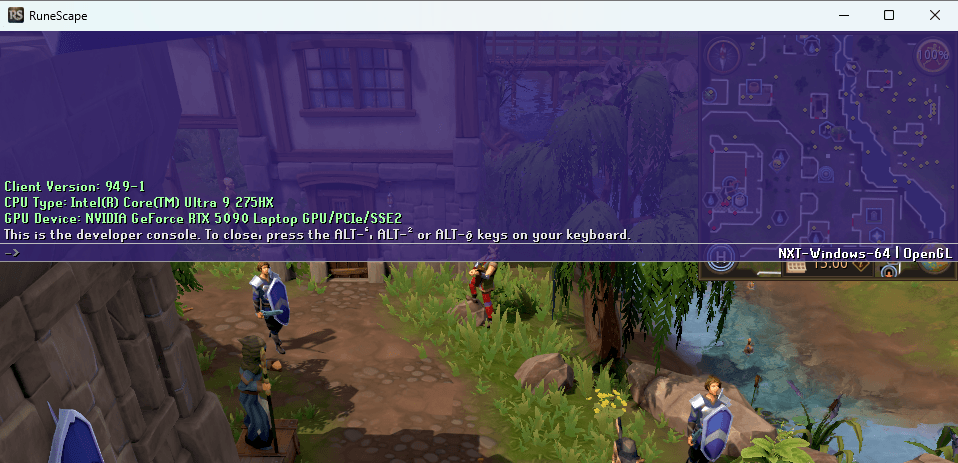
The console can be closed by pressing ALT + ` again, and while the console is open then all keys pressed will type in the console instead of activating any keybinds or chat in the RuneScape client. There are a number of commands that are typed into the console for managing plugins.
Other Locations
If you need to repeat the same command in the console, you can use the UP and DOWN arrow keys to scroll through recently submitted commands.
Plugin Commands (find plugins)
The plist command makes the console list all the plugins that it has found in the root directory. If you have created the folder, manifest, and script for your plugin correctly then it should display:
plistFound 1 plugins
my-awesome-pluginIf the plugin is not listed then it may be necessary to refresh the list of plugins by using prf, and then plist after refreshing. This is common if the plugin folder and files were created after loading into the beta world.
prf
plistFound 1 plugins
my-awesome-pluginPlugin Commands (enable/disable)
These commands are used to turn a plugin on pon (enable), off poff (disable), or reload it prl (equivalent to turning it off and on again). They must be followed by the name of the plugin from the list, which is the name of the folder that holds the plugin files. For example:
pon my-awesome-plugin>>Hello world!This is the result of running the plugin's script. It simply prints the text "Hello world!" to the console, and then does nothing else. Reloading the plugin by typing prl my-awesome-plugin into the console will make it print the text again, as many times as you like.
As a bonus, while the plugin is enabled the plist command will show its status on the list of plugins.
plistFound 1 plugins
my-awesome-plugin [ENABLED]Whenever you save a change to one of the Lua files in your plugin (this example only contains one file), you must reload that plugin using prl my-awesome-plugin for the game to use the new Lua code. If you do not reload, then the plugin will continue to work as it did before you saved the files.
Troubleshooting
The console is a useful tool for testing if your plugin is working as intended. You are encouraged to frequently use print() commands to display in the console what the plugin is working on. Doing this won't prevent the plugin from running, but it will give information that can be checked by looking at the console. This example plugin has been made to run without errors, but if the script were altered to be missing an important ":
print("Hello world!)Then attempting to enable the plugin will result in an error:
[ERROR] in print("Hello world!)(-1): [string "print("Hello world!)!]:1: unfinished string near <eof>This is useful information in troubleshooting why the plugin has not worked. It contains information on which line has had the error (print("Hello world!)), where in the file the error occurred (:1 means line 1), and what the error was (unfinished string). So the error message has correctly identified exactly what the problem in the script is.
Built by Astrect and contributors. These are community-sourced docs intended to supplement the official documentation, that can be found at https://developer.runescape.com/rs/index.html.